
Guides
The perfect README GIF
A good README GIF shows one thing, loops cleanly and loads before the reader scrolls past. Here's how to get there.
3 min read
Step by step
- 1
Pick a small area
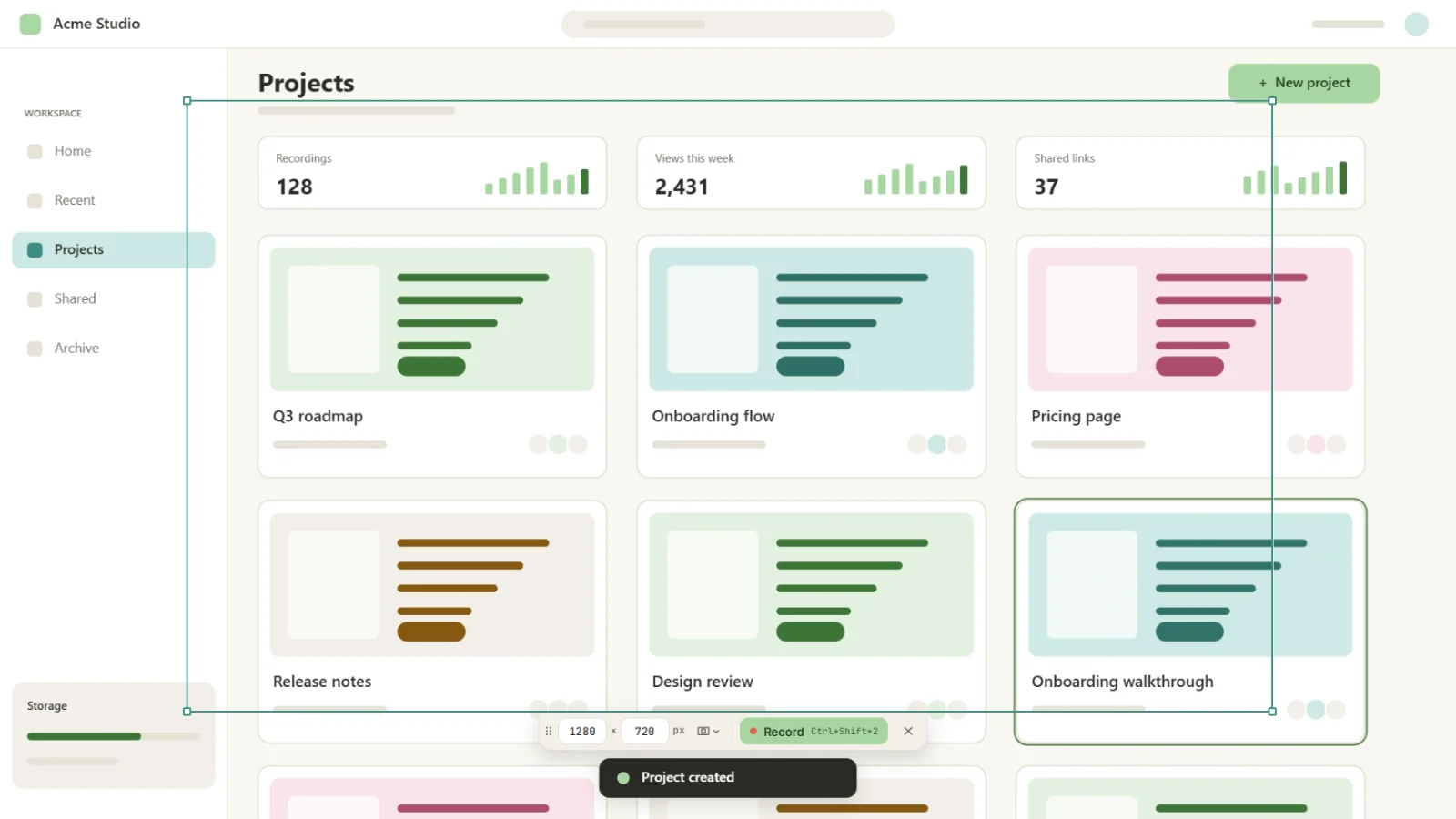
On the start screen, choose Select and draw a frame around just the part you want to show. Smaller area, smaller file, sharper result.
- 2
Keep it short
Aim for 5 to 15 seconds: one action, start to finish. Turn the microphone and computer sound off; GIFs have no sound anyway.
- 3
Record one clean take
Hit Record, do the thing, press Ctrl+Shift+2. Kamo turns the clicks into zooms and smooths the cursor.
- 4
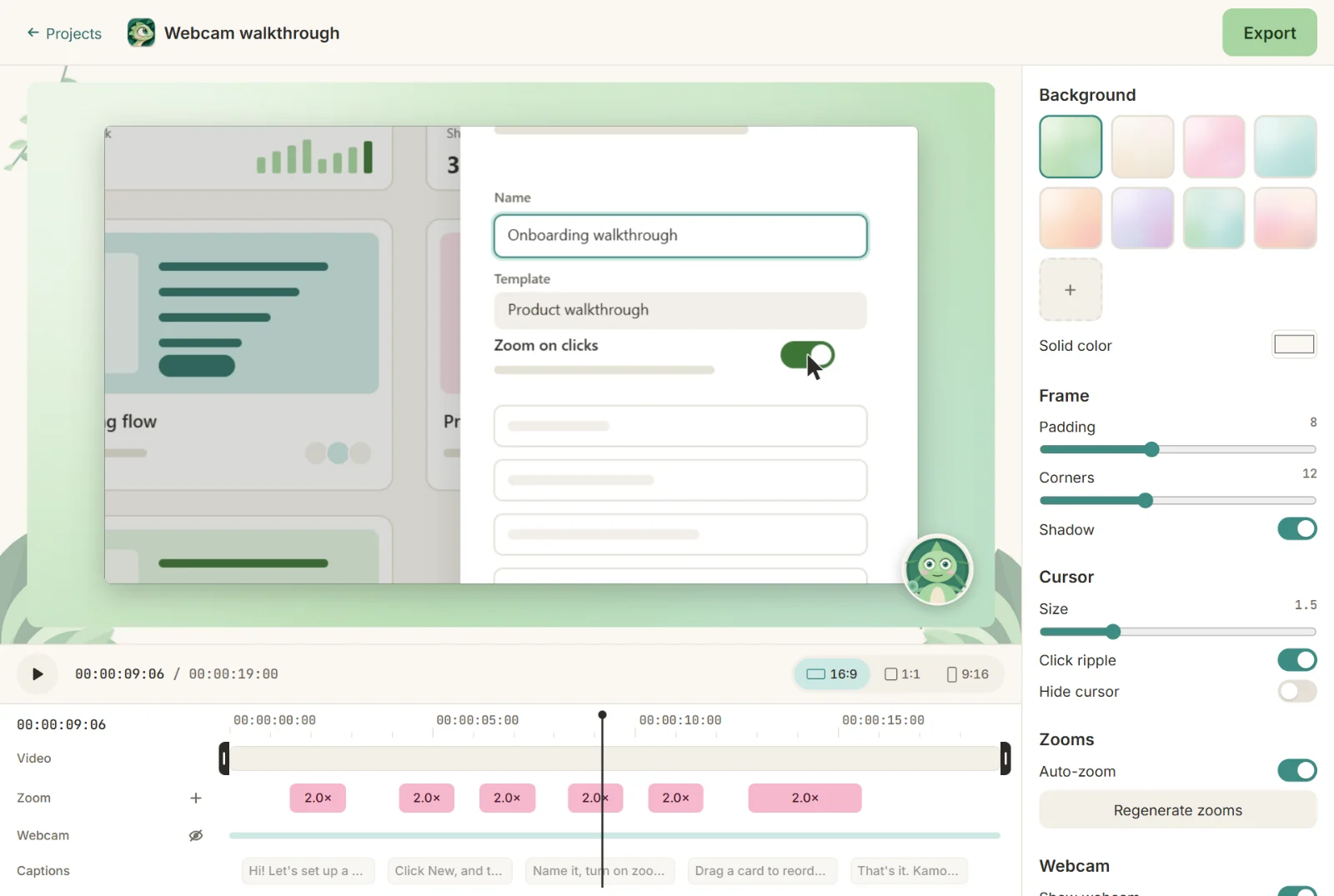
Trim tight
In the editor, trim the start and the end so the loop feels seamless.
- 5
Export as GIF
In Export, choose GIF. Kamo exports up to 1280 px wide at 10 or 15 fps and shows the estimated size before you export.
- 6
Add it to the README
Drag the GIF into the README editor on GitHub, or commit it to the repo and reference it with Markdown.
Tips
- Too big? Try 10 fps or a smaller selection.
- Export a 1:1 MP4 in the same go for your launch post.
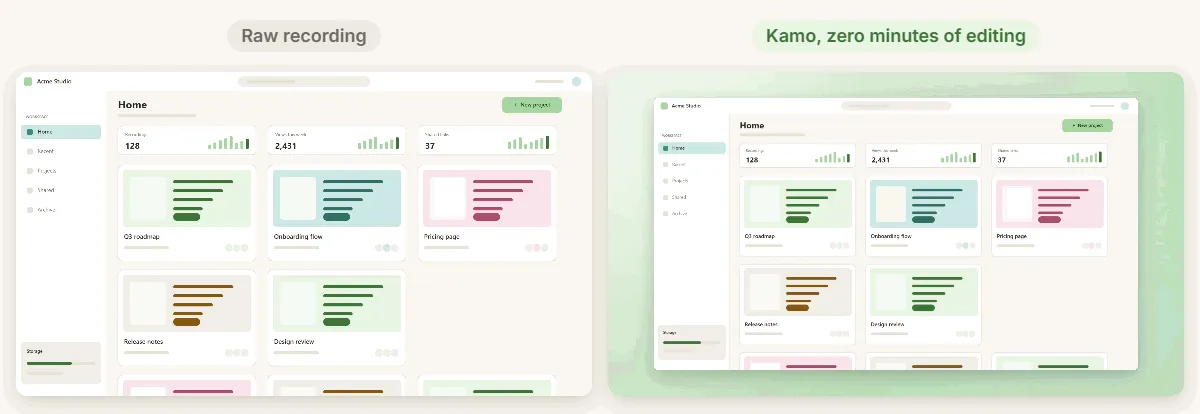
- Plain wallpapers compress better than busy ones.
Who this is for · See also

Try it on your next recording.
Free, open source, no account. Your first edited video is one download away.